Competitors
Manage competitors
On this page
#About Competitors
Manage competitors. This is a working page: a list or workspace where you find and act on records in BSuit ERP (CRM & Sales). It is used by staff (internal users). What you can see and do depends on your role and permissions.
#How to open it
In BSuit ERP, open CRM & Sales and choose “Competitors”, or go directly to the address /crm/competitors.
#What you can do here
These controls are present in the page’s implementation. Whether you see a given one also depends on your permissions and on the data shown.
- Add new records — a form opens for the details.
- Change existing records.
- Delete records (you are asked to confirm).
- Bring records in from a file.
- Export what you see to a file.
- Print or save as PDF.
- Attach or upload files.
- Search within the page.
- Filter the data shown.
- Sort by a column.
- Page through long lists.
- Open dialogs or drawers for detail and confirmation.
#Fields
When you enter or change a crmcompetitor, these fields are on the form. Required fields must be completed before you can save.
| Field | Type | Required | Details | Refers to |
|---|---|---|---|---|
| Code | text | Yes | — | — |
| Name | text | Yes | — | — |
| Website | text | No | — | — |
| Strengths | textarea | No | — | — |
| Weaknesses | textarea | No | — | — |
| Notes | textarea | No | — | — |
| Active | checkbox | No | — | — |
#What the list shows
The list displays these columns; use search and filters to narrow it.
- Code
- Name
- Website
- Active
#How to add a crmcompetitor
Steps follow this page’s form. You need permission to create records here.
- Open CRM & Sales › Competitors from the menu.
- Choose the Add button (a plus icon) above the list. The form opens in a dialog.
- Complete the required fields: Code, Name.
- Save. The new record appears in the list; use search or the filters to find it again.
- To change it later, open the record from the list and edit it.
- Deleting asks you to confirm. Records that other records refer to may be refused or may affect them (see “Where … is used as a reference”).
#Observed on a running system
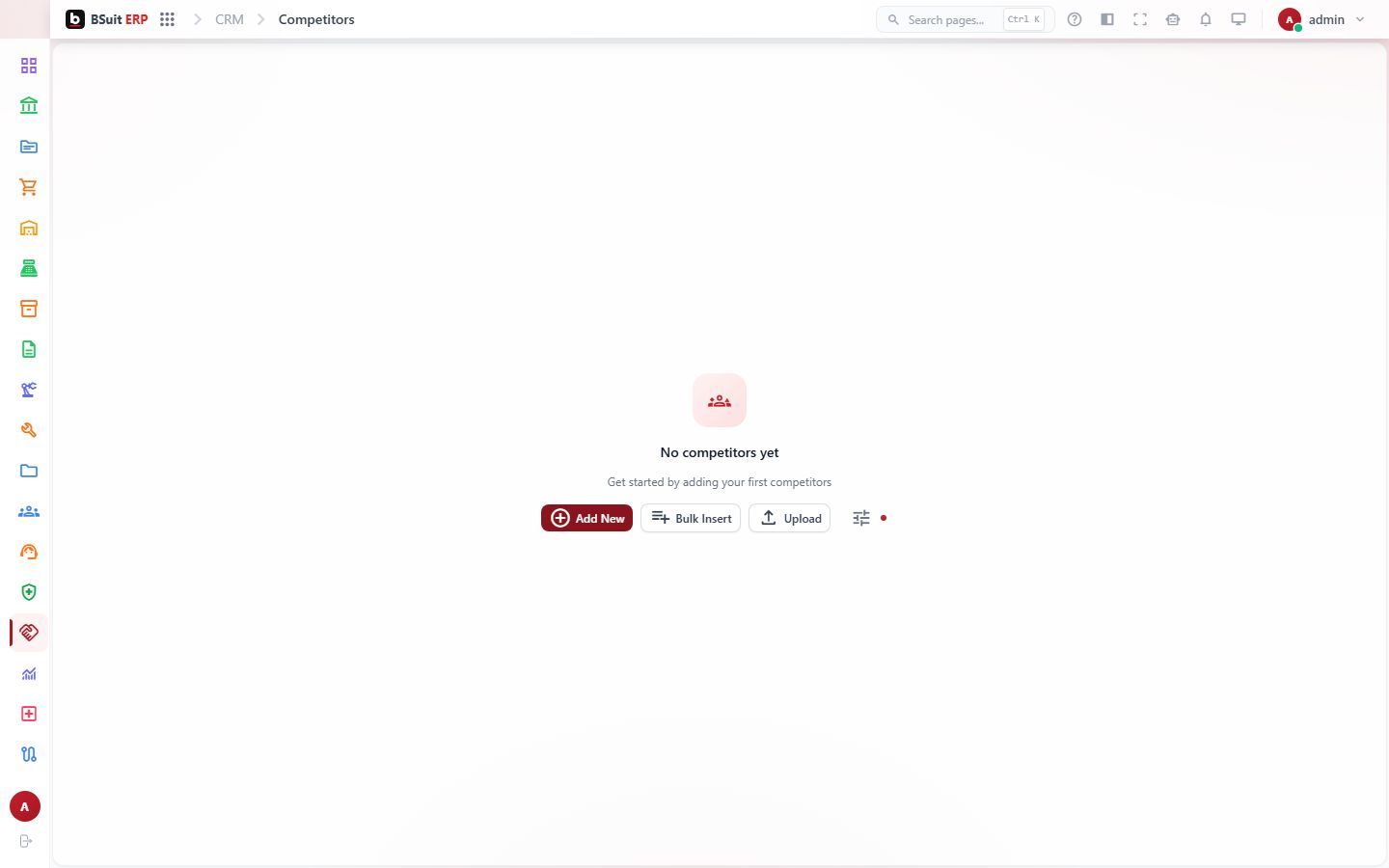
On 2026-09-21 this page was opened in a browser as a test administrator. This is what was visible on screen. Your own view can differ with your role, data and settings.
| Button |
|---|
| Filter |
| History |
| Add (plus icon) |
| Settings (cog icon) |
| Code |
| Name |
| Website |
| Active |
| Edit (pencil icon) |
#If something is missing or fails
- No data: confirm the company or context selected in the top bar, and any filters or date range in use.
- An action is hidden or disabled: it usually needs a permission your role does not have. Ask an administrator to check your effective access.
- An error message appears: note the message, the page address and what you were doing, and contact support with those details (never include passwords).
#About this guide
This guide was generated from the page’s implementation. It has not yet been reviewed by a person against a running system, so treat it as a reference for what the page contains rather than a complete procedure.
About this guide
- Status
- Partially reviewed
- Application
- BSuit ERP
- Audience
- Staff (internal users)
- Owner
- BSuit documentation team
- Reviewer
- Not yet reviewed
- Last verified
- Never
- Checked against
- Generated from source revision a36c7a086 on 2026-10-02
- Seen on a running system
- 2026-09-21
- Help version
- 2026.0.0-preview
- Guide ID
erp:/crm/competitors