Attendance Delegations
Grant temporary, effective-dated attendance authority
On this page
#About Attendance Delegations
Grant temporary, effective-dated attendance authority. This is a report page for reading, filtering and exporting results in BSuit ERP (Human Resources). It is used by staff (internal users). What you can see and do depends on your role and permissions.
#How to open it
In BSuit ERP, open Human Resources and choose “Attendance Delegations”, or go directly to the address /hr/attendance-delegations.
#What you can do here
These controls are present in the page’s implementation. Whether you see a given one also depends on your permissions and on the data shown.
- Add new records — a form opens for the details.
- Change existing records.
- Delete records (you are asked to confirm).
- Bring records in from a file.
- Export what you see to a file.
- Print or save as PDF.
- Attach or upload files.
- Search within the page.
- Filter the data shown.
- Sort by a column.
- Page through long lists.
- Open dialogs or drawers for detail and confirmation.
#Fields
When you enter or change an attendance delegation, these fields are on the form. Required fields must be completed before you can save.
| Field | Type | Required | Details | Refers to |
|---|---|---|---|---|
| Authority Owner | select | Yes | — | Chosen from a list loaded by the page |
| Temporary Delegate | select | Yes | — | Chosen from a list loaded by the page |
| Scope Type | select | Yes | One of: Reporting Tree, Project, Worksite, Crew. | — |
| Scope ID | text | Yes | — | — |
| Valid From | date | Yes | — | — |
| Valid To | date | Yes | — | — |
| Active | checkbox | No | — | — |
| Reason | textarea | No | — | — |
#Data stored for each record
The full list of 13 stored fields, including ones not shown on the form, is in the AttendanceDelegation data reference.
#What the list shows
The list displays these columns; use search and filters to narrow it.
- Authority Owner
- Temporary Delegate
- Scope
- Scope ID
- From
- To
- Active
#How to run an attendance delegations report
Reports are read-only: running one never changes data.
- Open Human Resources › Attendance Delegations from the menu.
- Set any date range or filters shown at the top of the page.
- Run or refresh the report so the figures reflect your filters.
- Read the result columns: Authority Owner, Temporary Delegate, Scope, Scope ID, From, To, Active.
- Use Export to download what you see.
- Use Print to print or save it as a PDF.
- If the numbers look wrong, check the filters, the selected company and the accounting period before contacting support.
#How to add an attendance delegation
Steps follow this page’s form. You need permission to create records here.
- Open Human Resources › Attendance Delegations from the menu.
- Choose the Add button (a plus icon) above the list.
- Complete the required fields: Authority Owner, Temporary Delegate, Scope Type, Scope ID, Valid From, Valid To.
- Some fields offer a fixed list: Scope Type: Reporting Tree, Project, Worksite, Crew.
- Save. The new record appears in the list; use search or the filters to find it again.
- To change it later, open the record from the list and edit it.
- Deleting asks you to confirm. Records that other records refer to may be refused or may affect them (see “Where … is used as a reference”).
#Observed on a running system
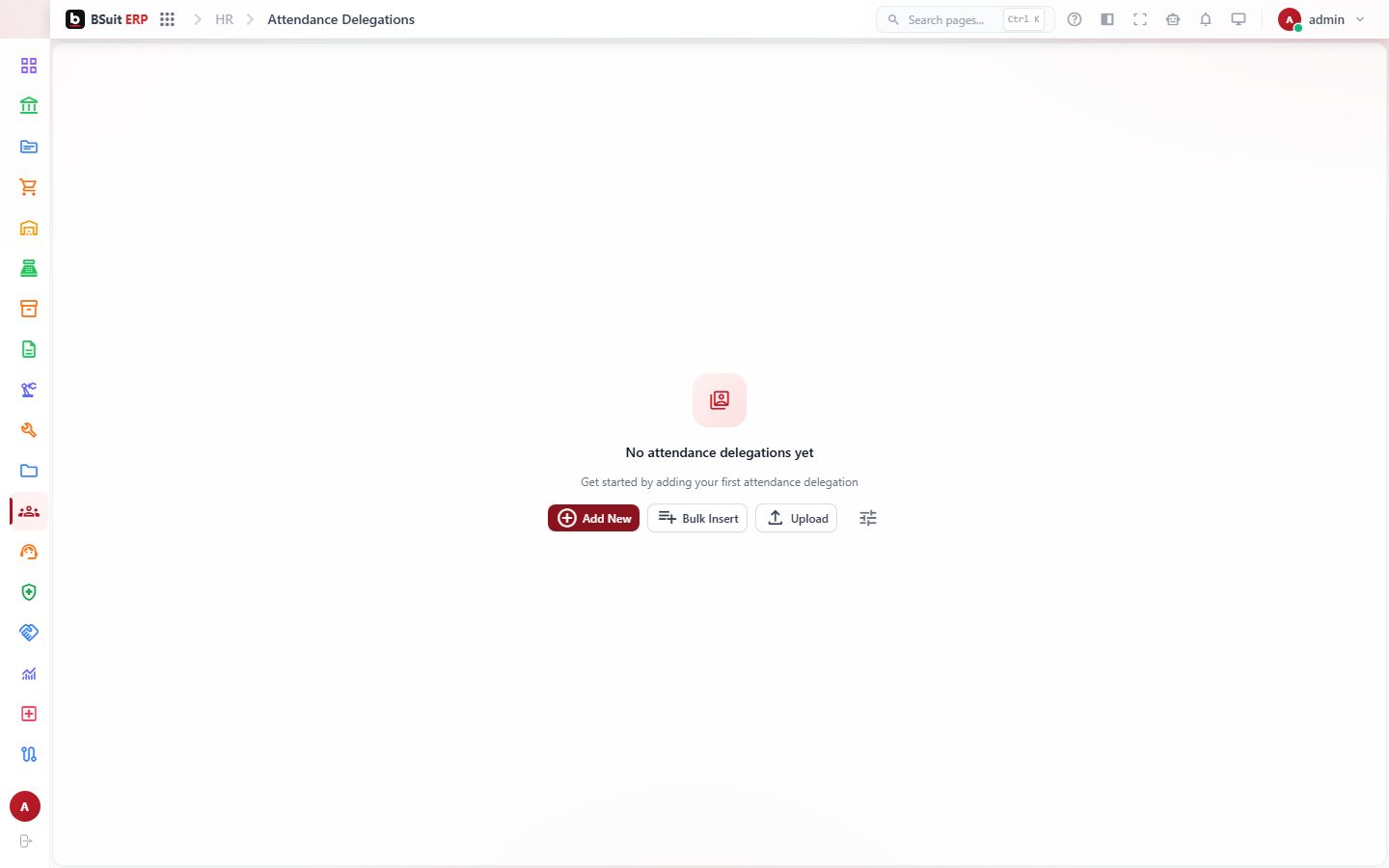
On 2026-09-21 this page was opened in a browser as a test administrator. This is what was visible on screen. Your own view can differ with your role, data and settings.
| Button |
|---|
| Add New |
| Bulk Insert |
#If something is missing or fails
- No data: confirm the company or context selected in the top bar, and any filters or date range in use.
- An action is hidden or disabled: it usually needs a permission your role does not have. Ask an administrator to check your effective access.
- An error message appears: note the message, the page address and what you were doing, and contact support with those details (never include passwords).
#About this guide
This guide was generated from the page’s implementation. It has not yet been reviewed by a person against a running system, so treat it as a reference for what the page contains rather than a complete procedure.
About this guide
- Status
- Partially reviewed
- Application
- BSuit ERP
- Audience
- Staff (internal users)
- Owner
- BSuit documentation team
- Reviewer
- Not yet reviewed
- Last verified
- Never
- Checked against
- Generated from source revision a36c7a086 on 2026-10-02
- Seen on a running system
- 2026-09-21
- Help version
- 2026.0.0-preview
- Guide ID
erp:/hr/attendance-delegations