Opening Stock
Reference for Opening Stock in Procurement.
On this page
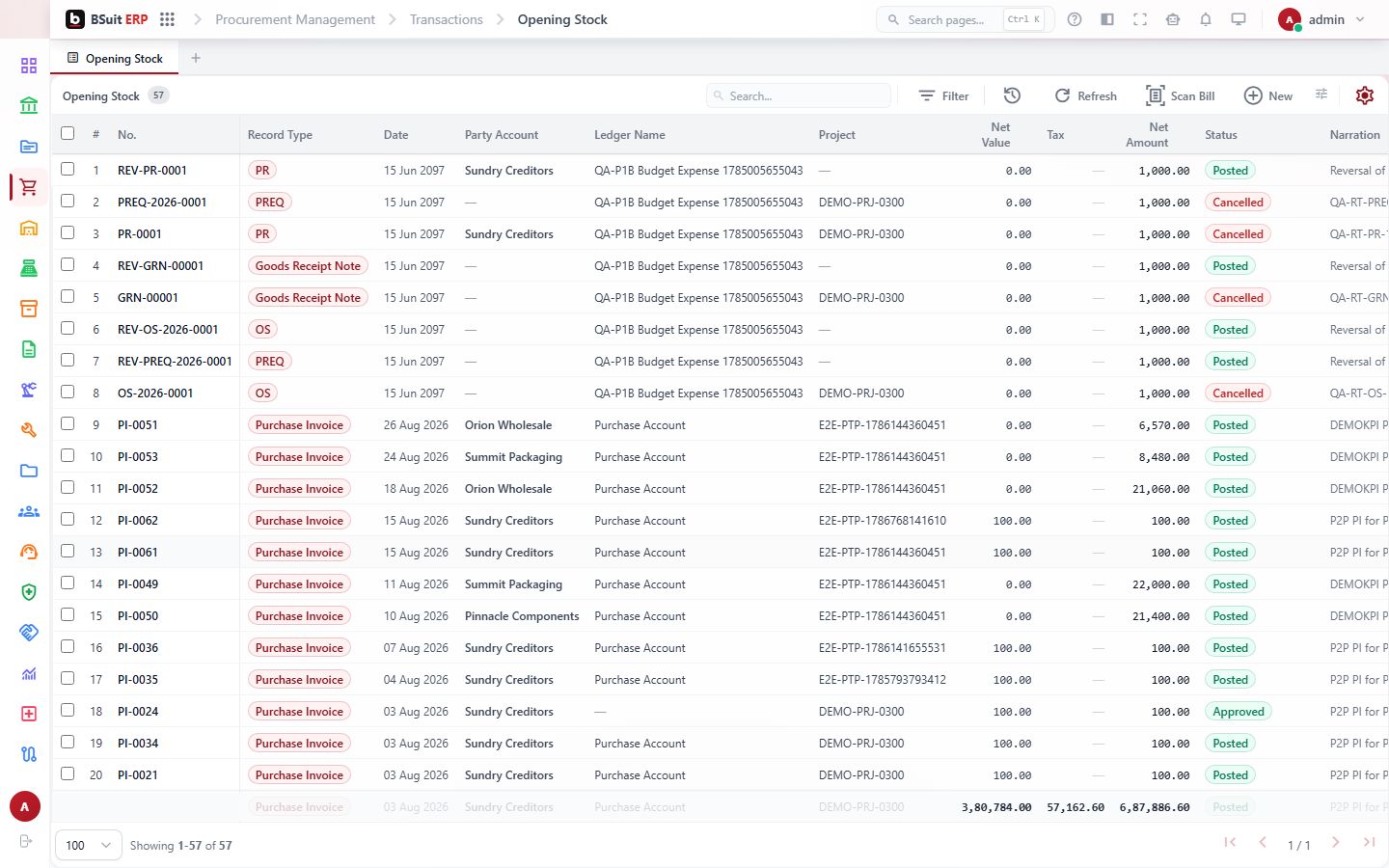
#About Opening Stock
This is a business document (transaction) page in BSuit ERP (Procurement). It is used by staff (internal users). What you can see and do depends on your role and permissions.
#How to open it
In BSuit ERP, open Procurement and choose “Opening Stock”, or go directly to the address /procurement-management/transactions/opening-stock.
#What you can do here
Detailed controls for this page have not yet been documented. Use the page itself to see what is available, and ask your administrator if an action you expect is missing.
#Fields
When you enter or change an opening stock, these fields are on the form. Required fields must be completed before you can save. 1 of them are reference fields: you pick an existing record from another master rather than typing a value.
| Field | Type | Required | Details | Refers to |
|---|---|---|---|---|
| Transaction Date | date | Yes | — | — |
| Voucher No. | text | No | — | — |
| Ledger / Account | select | Yes | — | List loaded from /api/finance-management/ledgers |
| Reference No. | text | No | — | — |
| Narration | text | No | — | — |
| Line Items (item, quantity, unit price, tax, line total) | grid | Yes | — | — |
#What the list shows
The list displays these columns.
- Voucher No.
- Record Type
- Date
- Party Account
- Ledger Name
- Project
- Cost Center
- Net Value
- Tax
#How to create an opening stock
Steps follow this document’s configuration. Screens and button names can differ slightly with your version and permissions.
- Open Procurement › Opening Stock from the menu.
- Choose the button to add a new record (a plus or “New” button above the list). The entry form opens.
- Complete the required fields: Transaction Date, Ledger / Account, Line Items (item, quantity, unit price, tax, line total).
- Fill in any other fields you need: Voucher No., Reference No., Narration.
- Add the line items. Each line needs its item or account, quantity or amount, and any tax or discount that applies.
- Save. Numbered automatically as OS0001 and up. You do not type the number.
- Submit it for approval. It takes effect only after it is approved; until then it is not final.
- Check the record in the list: the number, date and amount should match what you entered.
#How this document works
Opening Stock is a business document (Record Type OS). Its behaviour comes from its record-type configuration:
- Numbered automatically as OS0001 and up.
- Routed through an approval workflow before it takes effect.
#If something is missing or fails
- No data: confirm the company or context selected in the top bar, and any filters or date range in use.
- An action is hidden or disabled: it usually needs a permission your role does not have. Ask an administrator to check your effective access.
- An error message appears: note the message, the page address and what you were doing, and contact support with those details (never include passwords).
#About this guide
This guide was generated from the page’s implementation. It has not yet been reviewed by a person against a running system, so treat it as a reference for what the page contains rather than a complete procedure.
About this guide
- Status
- Partially reviewed
- Application
- BSuit ERP
- Audience
- Staff (internal users)
- Owner
- BSuit documentation team
- Reviewer
- Not yet reviewed
- Last verified
- Never
- Checked against
- Generated from source revision a36c7a086 on 2026-10-02
- Seen on a running system
- Not yet
- Help version
- 2026.0.0-preview
- Guide ID
erp:/procurement-management/transactions/opening-stock